
Import lines as routes
In Field Mapping, confirm Routes (Lines) is selected. GPX track segments become routes. Leave other destinations off for this example, then choose Apply Mapping & Preview.
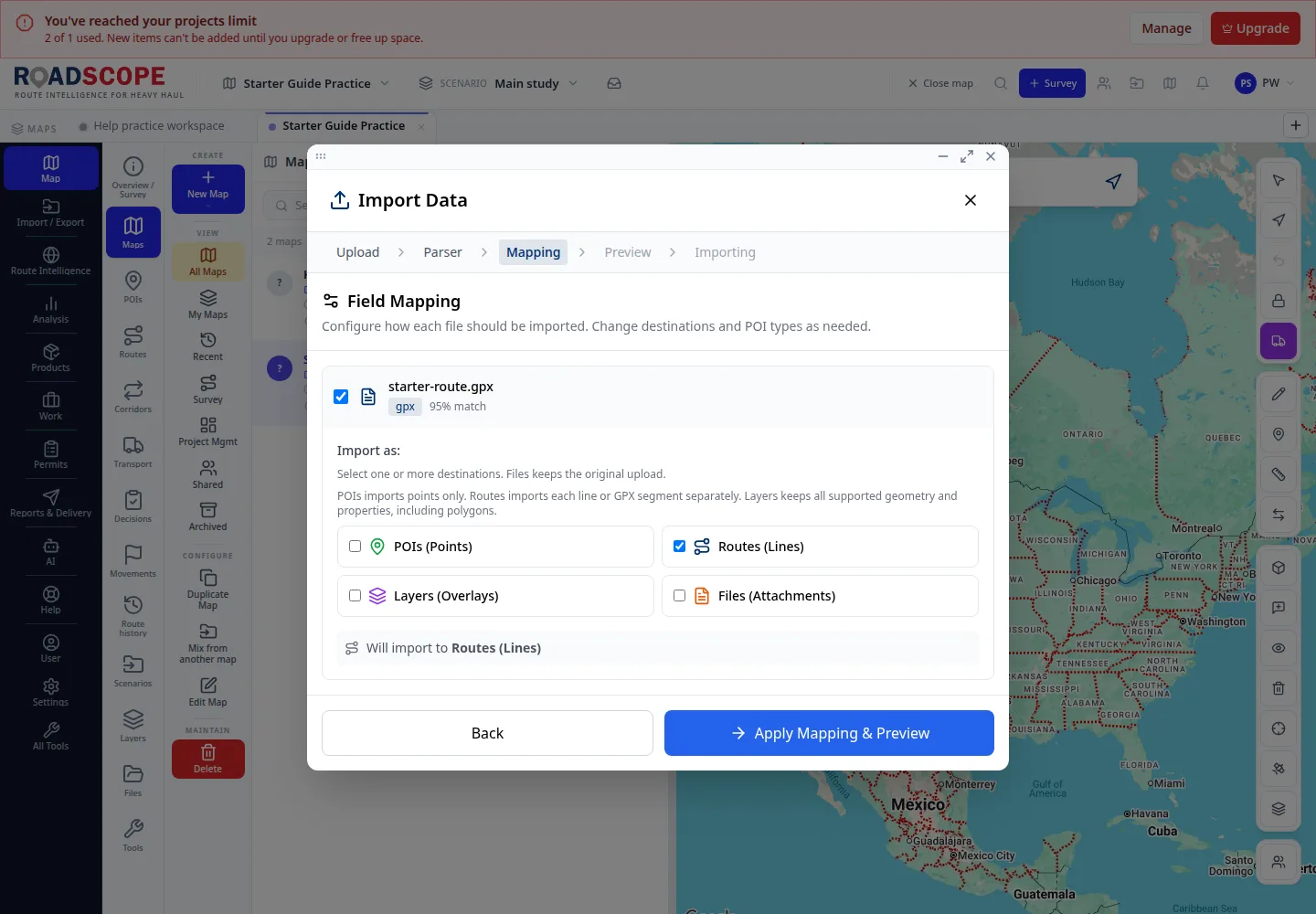
- Annotation 1: Review Routes (Lines), then apply the mapping.
Listen to this step
Narration uses your device’s voice. Voice and availability depend on your browser and device. It only starts when you choose Play.
Full narration transcript
Import lines as routes. In Field Mapping, confirm Routes (Lines) is selected. GPX track segments become routes. Leave other destinations off for this example, then choose Apply Mapping & Preview.