
Confirm the saved route
Choose Done. Open Map, then Routes. The Practice route row remains after reloading. Pan and zoom to inspect its geometry near Ottawa. Importing geometry does not certify that a road is suitable for your vehicle.
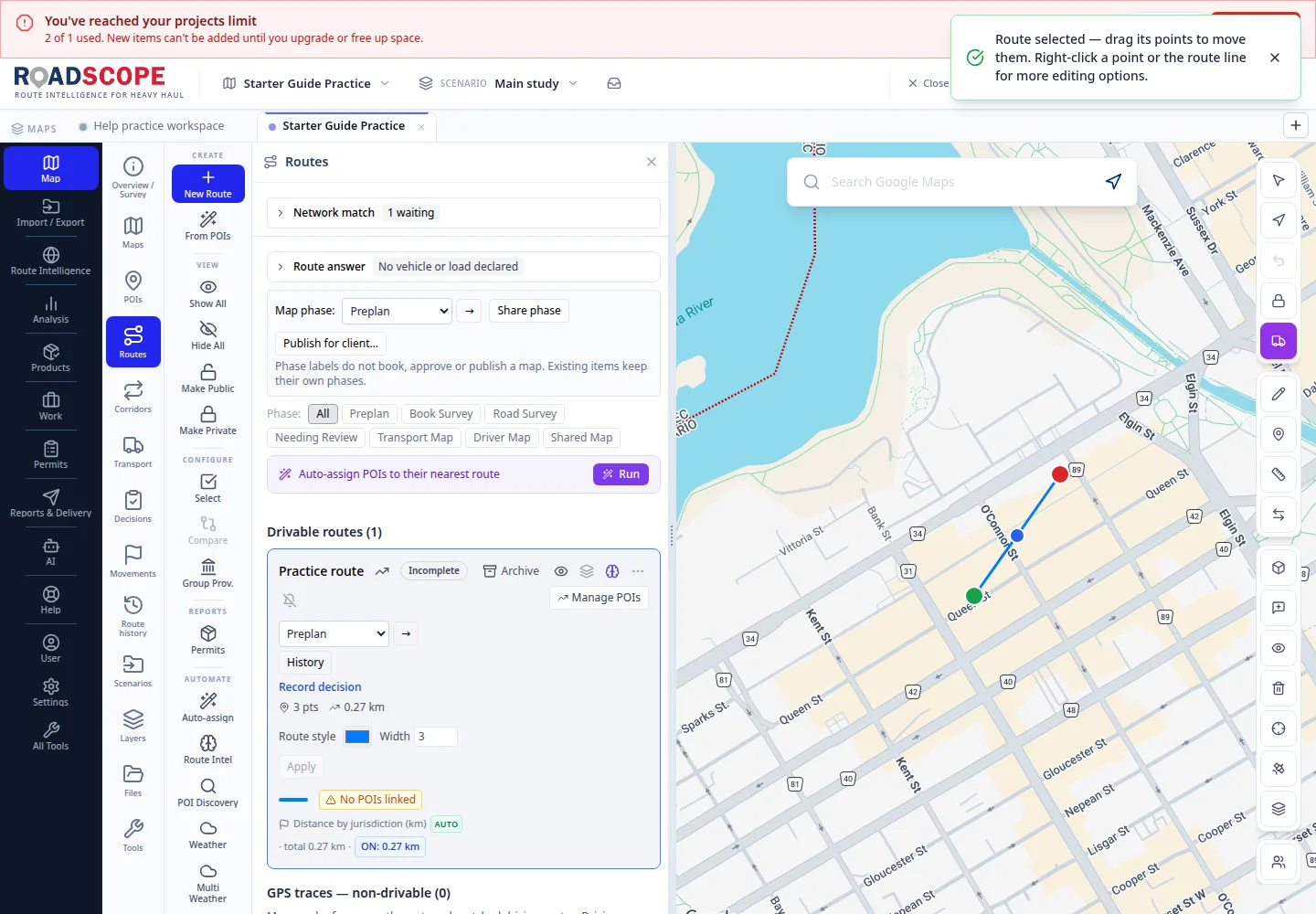
- Annotation 1: Practice route is stored in the active map.
Listen to this step
Narration uses your device’s voice. Voice and availability depend on your browser and device. It only starts when you choose Play.
Full narration transcript
Confirm the saved route. Choose Done. Open Map, then Routes. The Practice route row remains after reloading. Pan and zoom to inspect its geometry near Ottawa. Importing geometry does not certify that a road is suitable for your vehicle.