
Attach an image and add a measurement
Scroll to Photos and upload a demonstration image. This example attaches a screenshot of the practice map, not a real inspection photo. Wait for its thumbnail. In Measurements choose Height / Clearance, enter 4.8, confirm the displayed unit is m, and choose Add. Never treat this practice value as a verified clearance.
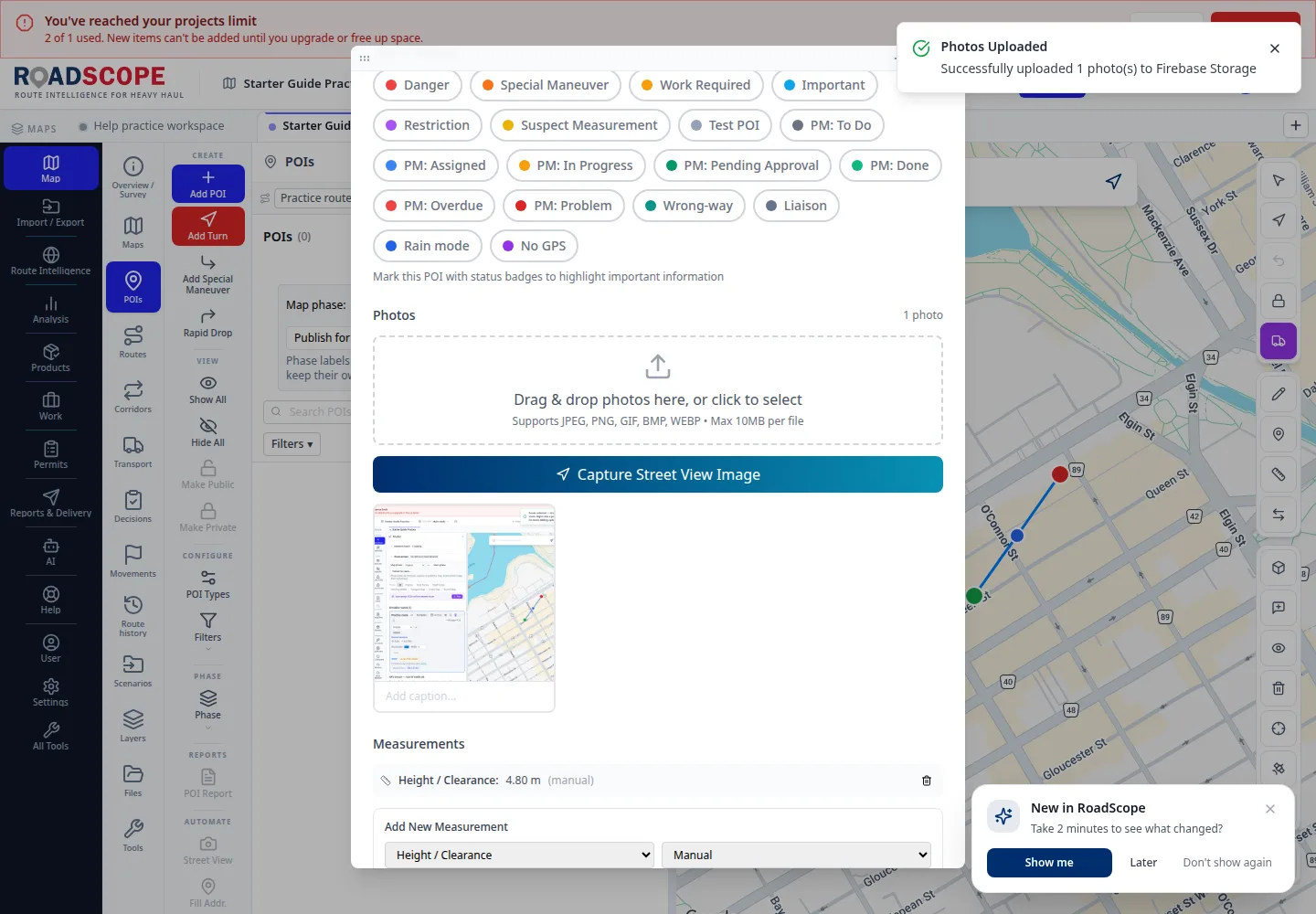
- Annotation 1: Attach the image, then add the height using explicit units.
Listen to this step
Narration uses your device’s voice. Voice and availability depend on your browser and device. It only starts when you choose Play.
Full narration transcript
Attach an image and add a measurement. Scroll to Photos and upload a demonstration image. This example attaches a screenshot of the practice map, not a real inspection photo. Wait for its thumbnail. In Measurements choose Height / Clearance, enter 4.8, confirm the displayed unit is m, and choose Add. Never treat this practice value as a verified clearance.